Download and double-click the GainTools Access to SQL Converter to open it on your system.

Click the Browse beside the Access File and navigate you’re the Access file that you want to work with.

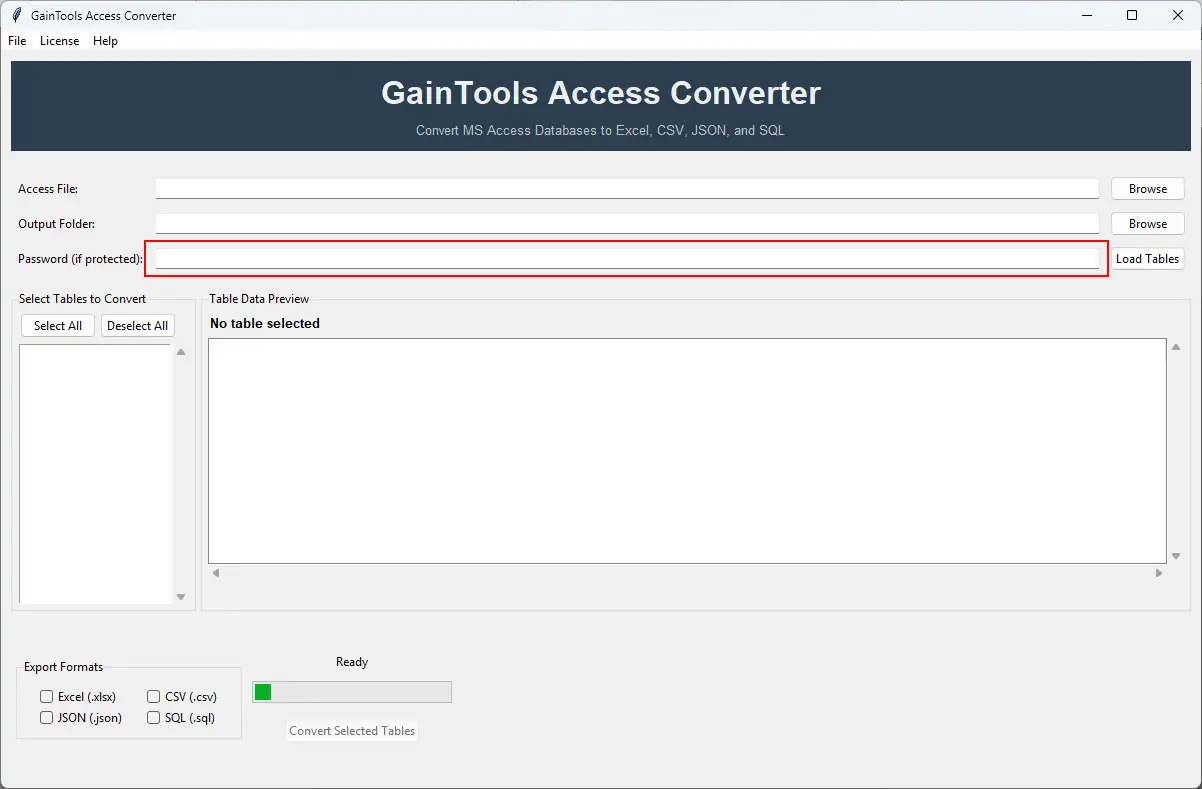
If the Access file is password-protected, enter the password, and the Load button will smartly enable when the correct password is entered.
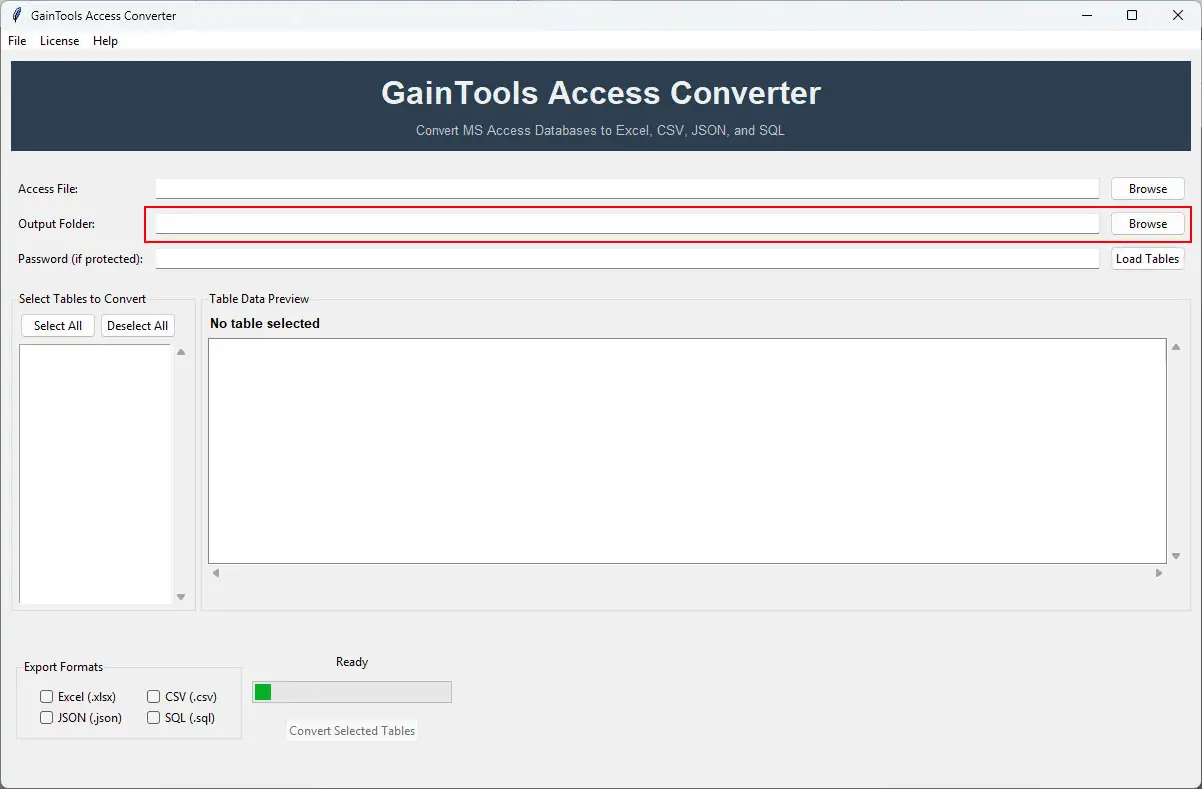
Browse and select the desirable destination for your output file next to the Output Folder option.
Click the Load Tables button, and the software will smartly connect to your database and display all the content inside the tables in the left panel.

To get a preview of the database, click on any table name, and the software will show the preview of the selected table on the right panel, so that you can check the content before conversion happens.

This software offers a filter type, Select All, to select all the tables, or Deselect All to clear the selection, so that you can select individual tables that you want to convert.

Choose the JSON format that you want to convert your Access database into.

Click the Convert Selected Tables button, and the conversion process will start. You can track the process on the progress bar and will get a Conversion Completed message when it’s finished.
Go to the output folder and check the files. Each table will be stored in a separate file in the JSON format without any file corruption or loss.