Access Converter Software Guide
Use Access Converter Tool to convert MS Access databases (.mdb and .accdb) to Excel, CSV, JSON, and SQL formats in just a few simple steps. Follow the mentioned steps –
Prerequisites
First Download Free Software from GainTools Access Converter Official Page and install in any Windows OS.
Easy Steps to Convert Access Database
Launch the Application
Download, install and run Access Converter on your Windows OS. Double-click the executable file to start the application.

Access Converter Software Interface
Select Access File
Select Your Access Database
Click the "Browse" button next to "Access File" and navigate to your .mdb or .accdb file. Select the file and click Open.

Select Access Database File
Enter Password (If Required)
Password Protection
If your database is password-protected, enter the password in the "Password (if protected)" field. The Load button will automatically enable when password is entered.
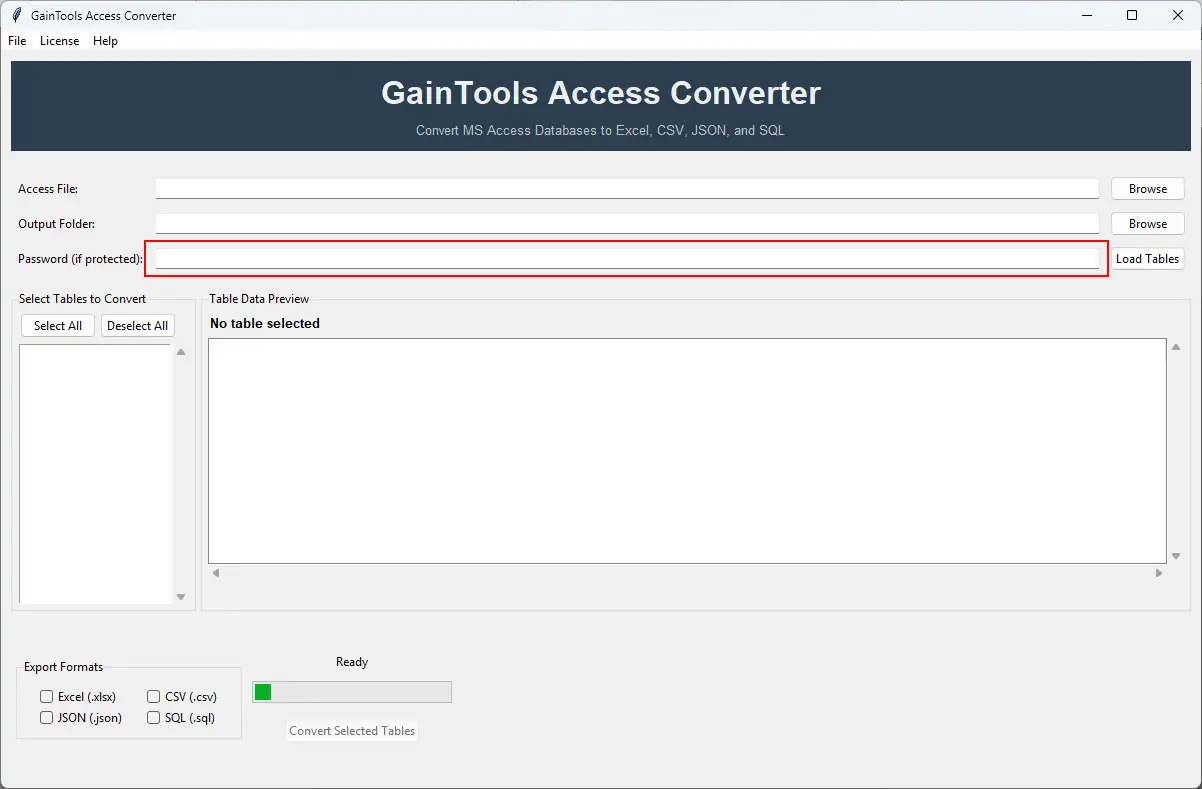
Enter Database Password
Select Output Folder
Choose Output Location
Click the "Browse" button next to "Output Folder" and choose where you want the converted files to be saved.
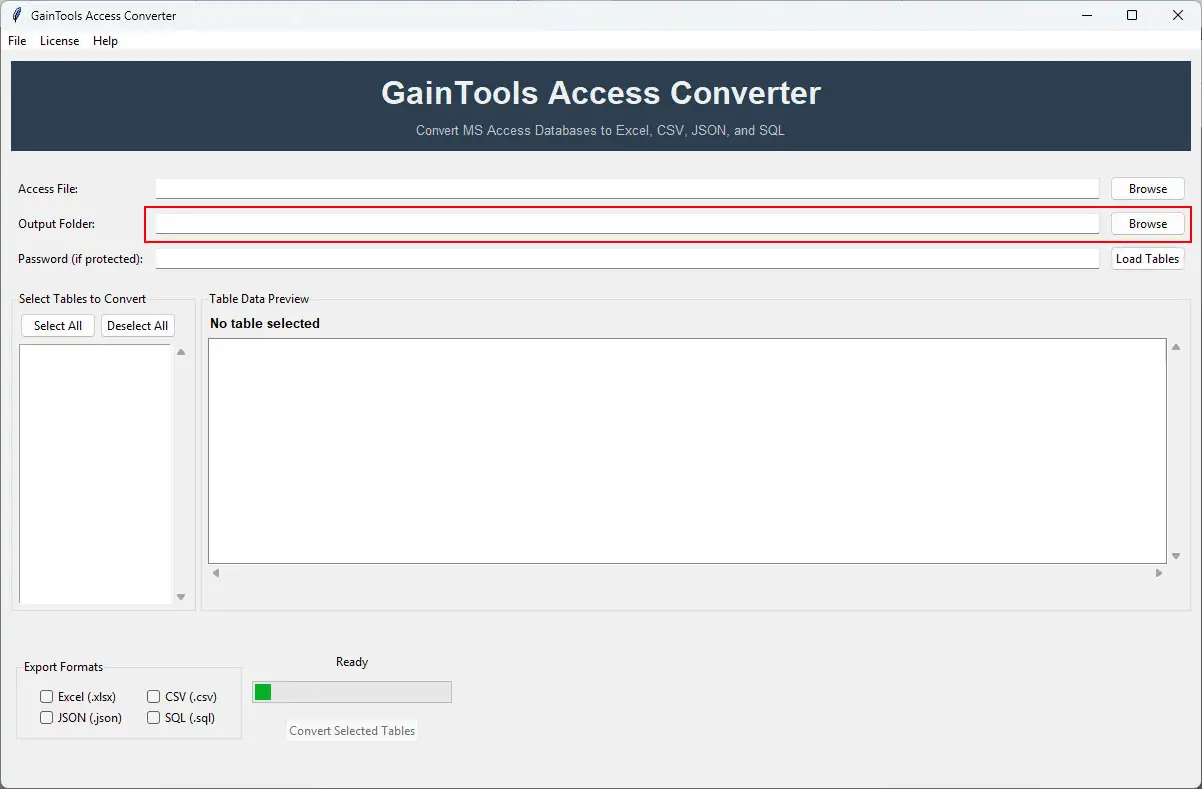
Select Output Folder
Load Tables
Connect and Load Tables
Click the "Load Tables" button. The application will connect to your database and display all available tables in the left panel.

Load Database Tables
Preview Data (Optional)
Preview Table Data
Click on any table name to preview its data in the right panel. This helps you verify the data before conversion.

Preview Table Data
Select Tables and Choose Formats
Select Tables and Export Formats
Select tables to convert (use Select All/Deselect All if needed) and check the boxes for export formats: Excel (.xlsx), CSV (.csv), JSON (.json), and/or SQL (.sql).

Select Tables and Formats
Convert Selected Tables
Start Conversion
Click the "Convert Selected Tables" button. A progress bar will show the conversion status. Wait for the "Conversion completed" message.

Convert Selected Tables
Conversion Complete!
Your Access database tables have been successfully converted to the selected formats (Excel, CSV, JSON, SQL). You can now access the converted files from the output folder you specified.