

Exchange Server OST cannot be opened error is a common Outlook issue that prevents users from accessing mailbox data. This guide explains the main causes and instant solutions to fix this error quickly.
OST or Offline Storage Table is exactly the replica of the mailbox items stored on the Exchange Server. The most important and major attribute of the OST file is that it enables users to work in offline mode. Outlook accounts that sync with MS Exchange Server save the data in the OST file format in the local drive of the users’ systems.
However, when the OST file becomes corrupted or inaccessible, users face errors like Microsoft Exchange Server OST cannot be opened and cannot access mailbox data.
Also read: The File Username.ost is in Use and cannot be Accessed
Major Reasons Behind Exchange Server OST Cannot Be Opened Error
Let us understand the possible reasons behind this error. This will help you to figure out the perfect solution to fix the error message. Here is the list of major reasons:
- Poor synchronization between Outlook and Exchange Server
- Internal damage and data inconsistency cause the OST file to become corrupted
- Installed antivirus application or firewall systems that restrict Outlook from accessing it
- Large size of the OST file results in performance issues
- An incompatible or outdated version of Outlook is the cause behind this
How to Resolve Exchange Server OST Cannot Be Opened Error
As we discussed above, the error arises due to many reasons, making it tough to fix this problem. Therefore, here we suggest some manual ways that help you deal with the error.
Manual Methods to Fix Exchange Server OST Cannot Be Opened Error
Solution 1. Update your Outlook application
In some scenarios, this problem arises due to incompatibility or internal problems. Updating your Outlook application might help you to fix this error and make it accessible again. For updating Outlook, the steps are mentioned below:
- Open the Outlook program and head to the File tab
- Tap on Office account, hit on Microsoft 365 and Office Updates. Then, place the mouse pointer on the Update Now button.
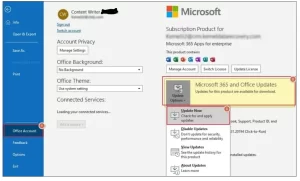
- This will start checking for updates and start downloading them automatically.
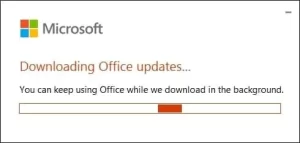
- Now, close and restart Outlook after completing the update to check if the issue is resolved or not.
Solution 2. Run Outlook in safe mode and disable incompatible add-ins
Sometimes, installed add-ins can obstruct Outlook performance and be the cause of the “Exchange OST cannot be opened” error. To resolve this, you can disable them. Check the steps below for this:
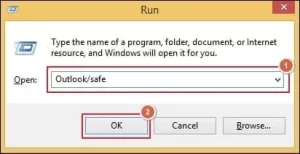
- Press Win + R keys together to start the Run dialog box. Now, enter Outlook/safe to open MS Outlook in safe mode.
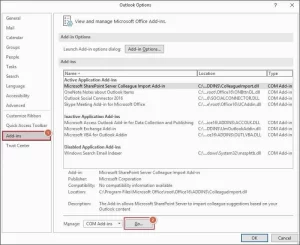
- Start Outlook and tap on Options.
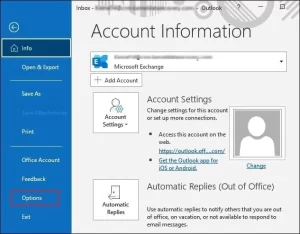
- Tap on the Add-ins section and press the Go button.
- Unmark all the available add-ins and press OK.
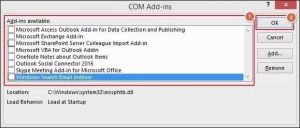
- Now, restart the Outlook program and enable add-ins one by one to figure out the problematic one. Disable the problematic component and check whether the error is resolved.
Solution 3. Repair the Outlook program with the Windows default repair utility
To repair installed applications, Windows offers a default repair utility. To fix the Outlook application, you can use this utility. The steps are as follows:
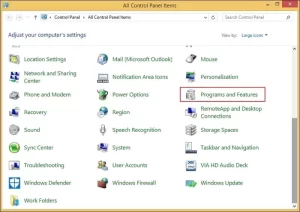
- Exit MS Outlook if running and open the Control Panel
- Hit on Programs and Features under the Control Panel window.
- Pick Microsoft 365 (or Outlook) from the installed programs and tap on the Change option.
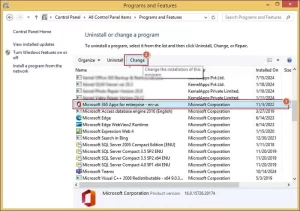
- Tap on the Repair option in the newly opened wizard.
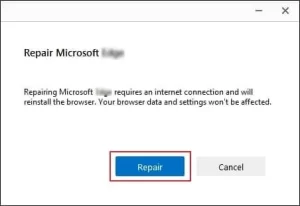
- This will start the repair process. Now, restart MS Outlook.
Solution 4. Disable Antivirus and firewall applications in your system
Antivirus or firewall applications are important to maintain a safe environment within an organization. However, there are cases where these security applications affect Outlook’s performance. To check if these applications are responsible for the error, disable them and check. If the Outlook application works fine after disabling the applications, then clearly, they are responsible for the error. You need to make adjustments that do not affect the functionality of Outlook.
Solution 5. Scan and repair the OST files using the Inbox Repair Tool
To fix the ‘Exchange Server OST file Cannot be Opened’ error, you can try the Inbox Repair Tool, as OST file corruption can be the reason for this. ScanPST.exe or Inbox Repair Tool is inbuilt in Outlook and helps you remove minor corruption errors from OST files & make them accessible again.
Professional Solution to Fix Exchange Server OST Opening Error
You can’t open an Outlook OST file without resolving the error ‘Microsoft Exchange Server .ost cannot be opened.’ In this case, you can try manual solutions to resolve the error. However, if these solutions won’t work, what’s next? Generally, the manual solutions resolve this error; however, if your OST file is highly damaged or corrupted, these solutions become ineffective. In this situation, you need to try automated solutions to resolve this error message.
If the OST file becomes severely corrupted, orphaned, or inaccessible, manual methods and ScanPST often fail to repair it completely. In such cases, using a professional OST recovery solution is the most effective way to restore mailbox data and open the OST file without errors.
By using GainTools OST to PST Converter, you can easily repair your corrupted or damaged OST files. This efficient program also allows users to export the data from a damaged OST file to a new PST file, so users can open this file. You will get numerous facilities with this program to efficiently handle OST file-related issues.
You will find a free demo edition of this program to check its features & functions before investing in it. This application supports all kinds of OST files and helps you fix the error message and make your OST file accessible again by converting its data into a PST file.
Conclusion
This guide explains the major causes and effective solutions to fix the Exchange Server OST cannot be opened error. Manual methods help resolve minor issues, but severely corrupted or inaccessible OST files require a professional recovery solution. Using a reliable OST recovery tool allows users to repair damaged OST files and restore mailbox data safely without data loss.
Frequently Asked Questions
Why does the Exchange Server OST fail to open?
It occurs due to corruption, synchronization issues, oversized OST files, or Outlook profile problems.
Can the ScanPST tool fix OST file errors?
ScanPST can repair minor corruption but cannot fix severely damaged OST files.
How to open an inaccessible OST file?
You can use manual methods or a professional OST to PST converter to open inaccessible OST files.
What is the best solution for a corrupted OST file?
A professional OST recovery tool is the safest way to repair and recover mailbox data.